
커뮤니티 뷰를 만들면서 좋아요, 댓글 버튼을 만드는데 이미지와 텍스트의 간격이 너무 가까워서 띄우는 방법을 알아봤다.
imageEdgeInsets를 사용해서 이미지가 버튼으로부터 멀어지게 간격을 띄울 수 있으며,
titleEdgeInsets를 사용해 타이틀이 버튼으로부터 멀어지게 간격을 띄울 수 있다고 하지만,
이렇게 간격을 벌리면 간격만 멀어지고 실제 버튼의 크기는 변하지 않기 때문에 이미지나 타이틀이 버튼의 클릭 범위를 벗어나게 된다고 한다.
contentEdgeInsets를 사용해서 버튼의 크기에도 인셋을 줄 수 있다고 하니
imageEdgeInsets를 2만큼 주고
titleEdgeInsets를 2만큼 주고
contentInsets을 양쪽에 2씩 주면 되겠지 생각하고 xcode로 들어가보니
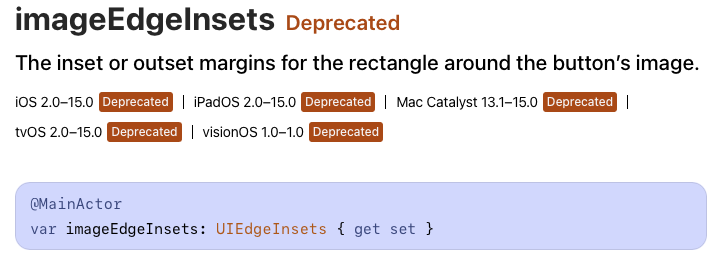


ㅠㅠ
그래서 새로 알아봤다.
UIButton Configuration
var likeButtonConfig = UIButton.Configuration.plain()
// ...
// configuration 설정
// ...

likeButton.configuration = likeButtonConfig
우선 기본 사용은 이런 식으로 한다.
생성할 때 적은 UIButton.Configuration.plain()의 plain은 스타일이다 plain 외에도 여러가지가 있는데
var config = UIButton.Configuration.plain()
var config = UIButton.Configuration.gray()
var config = UIButton.Configuration.tinted()
var config = UIButton.Configuration.filled()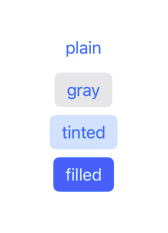
등등이 있다.
우선 내가 만들 버튼은 딱히 스타일이 필요하지 않기 때문에 plain으로 지정했다.
CornerStyle
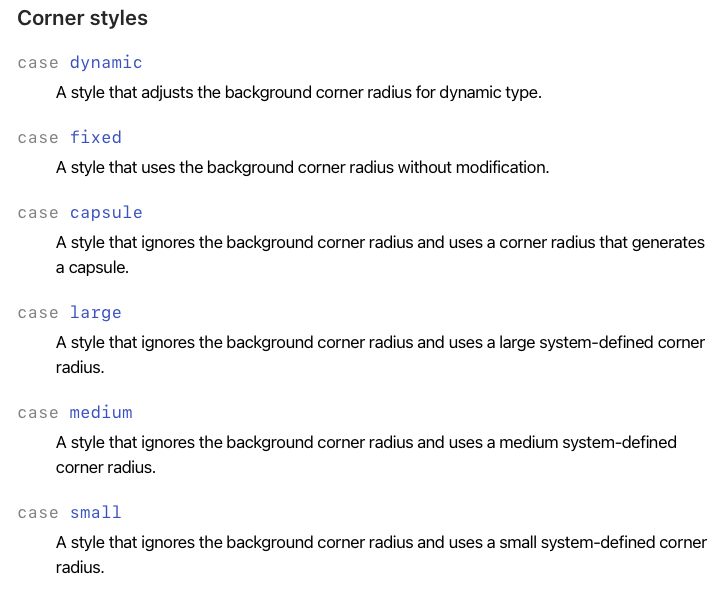
이런 타입들이 있는데 솔직히 다른 것들은 어떤 차이가 있는지 잘 모르겠는데
capsule은 유용하게 사용할 수 있을 것 같다.
var config = UIButton.Configuration.filled()
config.cornerStyle = .dynamic
config.cornerStyle = .capsule
config.cornerStyle = .fixed
config.cornerStyle = .small
이런 식으로 둥근 모양을 연출해야 할 때
원래 height값을 지정해주고 그의 절반 값을 구해 사용하던 부분을 생략 가능할 듯 하다.
ButtonSize
var config = UIButton.Configuration.filled()
config.buttonSize = .mini
config.buttonSize = .small
config.buttonSize = .medium
config.buttonSize = .large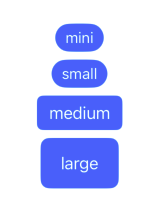
buttonSize는 이렇게 네 종류가 있다.
솔직히 여기서도 mini와 small의 차이점은 잘 모르겠다.
imagePadding
본론으로 돌아와서 image와 title의 간격은 imagePadding으로 줄 수 있다.
config.imagePadding = 4비슷한 것으로 titlePadding이라는 것이 있는데 이건 이미지와의 간격이 아닌
타이틀과 서브타이틀 간의 간격이라고 한다.
최종 코드
var likeButtonConfig = UIButton.Configuration.plain()
likeButtonConfig.buttonSize = .mini
likeButtonConfig.image = UIImage(systemName: "heart")?.withTintColor(.gray900, renderingMode: .alwaysOriginal)

// 폰트 설정이 필요 없다면 likeButtonConfig.title = "TEXT"처럼만 설정해도 된다.
likeButtonConfig.attributedTitle = AttributedString(
    "",
    attributes: AttributeContainer([.font: UIFont.body6])
)

likeButtonConfig.baseForegroundColor = .gray900 // 텍스트 색상
likeButtonConfig.imagePadding = 4

// imagePadding으로 늘어난 간격만큼 히트영역 확장
likeButtonConfig.contentInsets = .init(top: 0, leading: 2, bottom: 0, trailing: 2)

likeButton.configuration = likeButtonConfig
실제로는 imagePadding을 많이 작은 값을 줘서 contentInsets도 그냥 .zero로 설정했지만
imagePadding이나 titlePadding이 크다면 contentInsets으로 히트영역도 조정해줘야 한다.

참고
[iOS - swift] UIButton에 텍스트가 있는 버튼 구현 방법 (imageEdgeInsets, titleEdgeInsets, contentEdgeInsets)
UI 구현 시 주의할 점 최대한 constraint를 적게하고, UIKit에서 기본적으로 주어진 프로퍼티들을 이용하여 최대한 단순하게 만드는 것 constraint를 적게하는 이유: Commit Hitches가 줄어들어 UI 성능에 도
ios-development.tistory.com
[iOS] UIButton.Configuration 사용해보기
SNS 로그인 버튼을 만들기 위해 다음과 같은 코드를 작성하였다 private let kakaoLoginButton = UIButton().then{ $0.setImage(UIImage(named: "img_logo_kakao"), for: .normal) $0.backgroundColor = UIColor.kakaoyellow $0.setTitle("카카오
develop-me.tistory.com