이전 글과 이어지는 내용입니다.
Open API를 사용해 날씨 앱 만들기
완성된 앱https://openweathermap.org/ Current weather and forecast - OpenWeatherMapOpenWeather Weather forecasts, nowcasts and history in a fast and elegant wayopenweathermap.org위 사이트에서 제공하는 open API를 이용해 앱을 만들어보
ghnn.tistory.com
API 주소 알아두기
parameters가 늘긴 했지만 내가 쓸 건 똑같다.
그리고 주소도 마지막의 2.5/ 뒤에 weather가 forecast로 바뀐 거 말곤 없나보다.

구조체 생성
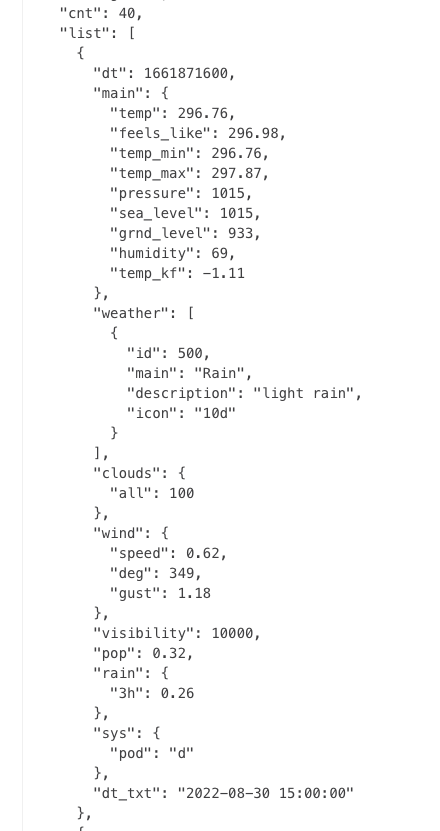
Forecast Weather Data의 구조는 이렇게 생겼다.
여기서 사용할 것은
list - main - temp
list - dt_txt
두가지이다.
아래와 같이 생성해줬다.
struct ForecastWeatherResult: Codable {
    let list: [ForecastWeather]
}

struct ForecastWeather: Codable {
    let main: Main
    let dtTxt: String

    enum CodingKeys: String, CodingKey {
        case main
        case dtTxt = "dt_txt"
    }
}
main은 이전에 Current Weather Data를 불러올 때
생성해뒀던 친구와 똑같이 생겼기에 그대로 사용해줬다.
안에 든 건 세갠데 그 중 하나만 사용할 거긴 하지만
forecast의 main에도 temp_min, temp_max가 있기에
불러오는데 오류는 없을 것 같다.
struct Main: Codable {
    let temp: Double
    let tempMin: Double
    let tempMax: Double

    enum CodingKeys: String, CodingKey {
        case temp
        case tempMin = "temp_min"
        case tempMax = "temp_max"
    }
}
API로 데이터를 받아올 메서드 생성
우선 이번에 받아올 데이터는 ViewController에서 바로 사용하는 것이 아니라
TableView로 가져가서 사용해야되기 때문에 정보를 담아둘 변수를 하나 생성해준다.
var dataSource: [ForecastWeather] = []ForecastWeatherResult가 제일 큰 카테고리이지만
그 안에는 list 하나밖에 없기 때문에
list를 할당해준 ForecastWeather로 생성했다.
그리고 메서드를 생성해준다.
dataSource에는 result.list를 넣어주면 된다.
private func fetchForecastData() {

    let urlComponents = URLComponents(string: "https://api.openweathermap.org/data/2.5/forecast")
    urlComponents?.queryItems = self.query

    guard let url = urlComponents?.url else { return }

    fetchData(url: url) { [weak self] (result: ForecastWeatherResult?) in

        guard let self, let result else {
            print("Invalid forecast URL")
            return
        }

        DispatchQueue.main.async {
            self.dataSource = result.list
            tableView.reloadData()
        }
    }
}
tableView는 아직 안 만들었지만 데이터를 할당하고
테이블 뷰를 리로드해야 해서 일단 적어만 둔다.
TableViewCell 생성
Cell을 먼저 만들 거다.
UI를 생성하고 세팅해둔다.
import UIKit
import SnapKit

class TableViewCell: UITableViewCell {

    // Cell을 생성할 때 identifier에 넣을 id
    static let id = "TableViewCell"

    let dtLabel = UILabel()
    let tempLabel = UILabel()

    override init(style: UITableViewCell.CellStyle, reuseIdentifier: String?) {
        super.init(style: style, reuseIdentifier: reuseIdentifier)

        setUI()
    }

    required init?(coder: NSCoder) {
        fatalError("init(coder:) has not been implemented")
    }

    private func setUI() {
        [dtLabel, tempLabel].forEach {
            $0.backgroundColor = .white
            $0.textColor = .black
            contentView.addSubview($0)
        }

        dtLabel.snp.makeConstraints {
            $0.centerY.equalToSuperview()
            $0.leading.equalToSuperview().inset(10)
        }

        tempLabel.snp.makeConstraints {
            $0.centerY.equalToSuperview()
            $0.trailing.equalToSuperview().inset(10)
        }
    }

    public func configureCell(item: ForecastWeather) {

    }
}
public으로 선언한 configureCell은 나중에
ViewController의 UITableViewDataSource에서 사용할 메서드이다.
우선 생성만 해둔다.
TableView 생성
private let tableView = UITableView()테이블 뷰를 하나 생성해준다.
그리고 configureUI() 메서드에 tableView의 세팅을 해준다.
delegate, dataSource는 아직 작성하지 않아서 오류가 나지만 일단 적어둔다.
private func configureUI() {
...
    tableView.dataSource = self
    tableView.delegate = self
    tableView.register(TableViewCell.self, forCellReuseIdentifier: TableViewCell.id)
    tableView.backgroundColor = .white
}
setUI() 메서드에 오토레이아웃도 잡아준다.
private func setUI() {

...

    [titleLabel, tempLabel, image, stackView, tableView]
        .forEach { view.addSubview($0) }

...

    tableView.snp.makeConstraints {
        $0.top.equalTo(image.snp.bottom).offset(30)
        $0.leading.trailing.equalToSuperview().inset(20)
        $0.bottom.equalToSuperview().inset(50)
    }
}
UITableView - Delegate, DataSource
extension ViewController: UITableViewDelegate {

}

extension ViewController: UITableViewDataSource {

    func tableView(_ tableView: UITableView, numberOfRowsInSection section: Int) -> Int {
        dataSource.count
    }

    func tableView(_ tableView: UITableView, cellForRowAt indexPath: IndexPath) -> UITableViewCell {

        guard let cell = tableView.dequeueReusableCell(withIdentifier: TableViewCell.id) as? TableViewCell else { return UITableViewCell() }

        cell.configureCell(item: dataSource[indexPath.row])

        return cell
    }
}TableViewCell에서 생성해뒀던 configureCell 메서드에 위와 같이 정보를 넘겨주면 된다.
이제 TableViewCell로 돌아가 configureCell 메서드를 작성해주자.
class TableViewCell: UITableViewCell {

...

    public func configureCell(item: ForecastWeather) {
        dtLabel.text = "\(item.dtTxt)"
        tempLabel.text = "\(Int(item.main.temp))\(ViewController.doC)"
    }
}
완성!
